Everything You Need.
Before You Ask.
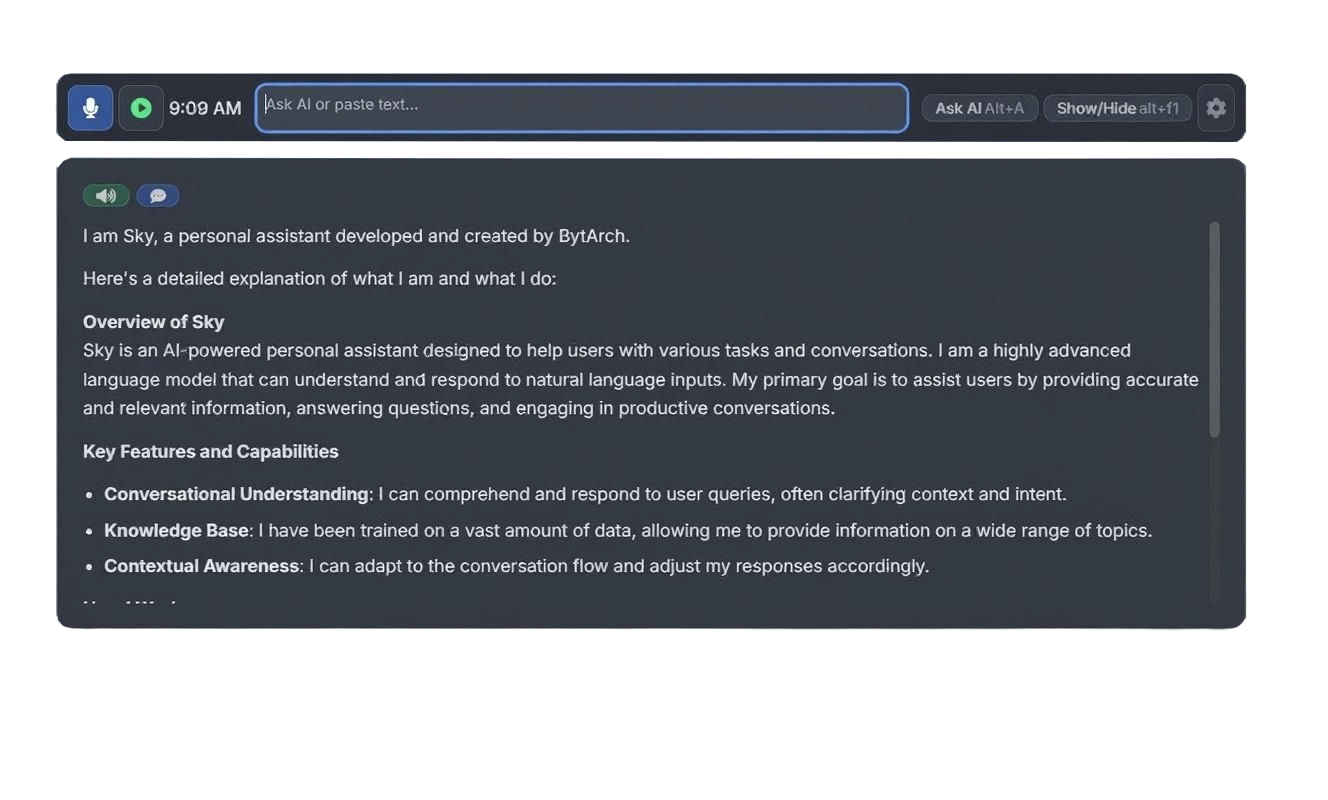
Sky is an AI that sees your screen, hears your calls, and answers in real time.
Sky is an AI that sees your screen, hears your calls, and answers in real time.
GET STARTED
Sky is an open-source browser extension. Follow these steps to install it:
Open your browser's extension settings page and turn on developer mode. This allows you to load unpacked extensions.
Download the extension files from the GitHub repository or use the download link above. Extract the ZIP file to a folder on your computer.
In your browser's extension settings, click "Load unpacked" and select the extracted folder. The Sky extension will now be installed and ready to use.
For both free and paid models, you need an API key to use Sky. Obtain your key from the Bytarch dashboard: bytarch.netlify.app/dashboard?section=profile.
If you don't have an account yet, create one here or log in to access your dashboard.
This is a new Turning Point.
To get started with Sky, you will need to enter your API key (also referred to as an account key) into the application. You can find your key in the Bytarch dashboard after logging in: bytarch.netlify.app/dashboard.
Sky sees and understands all the content on your screen, but only starts monitoring if you allow it, providing context-aware assistance.
Sky records audio via your microphone only when you click the microphone button, allowing for voice-based interactions.
Just press a key. Sky knows what you're doing and responds with exactly what matters — no switching tabs, no guesswork.
HOW YOU CAN USE SKY
Sky can assist students with research, provide explanations for complex topics, and help with homework by analyzing educational content on their screen.
From drafting emails to analyzing reports, Sky can streamline workflows by providing instant information and insights based on documents and applications.
Get quick answers to questions, manage your schedule, or find information while browsing the web, all with Sky's real-time assistance.
This mode is for general text-based queries to the AI.
Shortcut: Alt+A (Ask AI)
This mode allows the AI to analyze your screen content (e.g., images, text on screen) for visual understanding and response. Ideal for real-time assistance based on your desktop activity.
Start Monitoring: Alt+S
Stop Monitoring: Alt+X
This mode transcribes desktop audio and sends it to the AI for processing, allowing for voice-based interactions.
Toggle Audio Capture: Alt+R
This mode starts both screen monitoring and audio capture simultaneously, providing the AI with both visual and auditory context.
Start Combined Capture: Alt+M
Toggle Window Visibility: Alt+F1
Move Window Up: Alt+Up Arrow
Move Window Down: Alt+Down Arrow
Move Window Left: Alt+Left Arrow
Move Window Right: Alt+Right Arrow